




Step 1. Add code to theme’s functions.php
Adding a force_login meta field when user register to site.
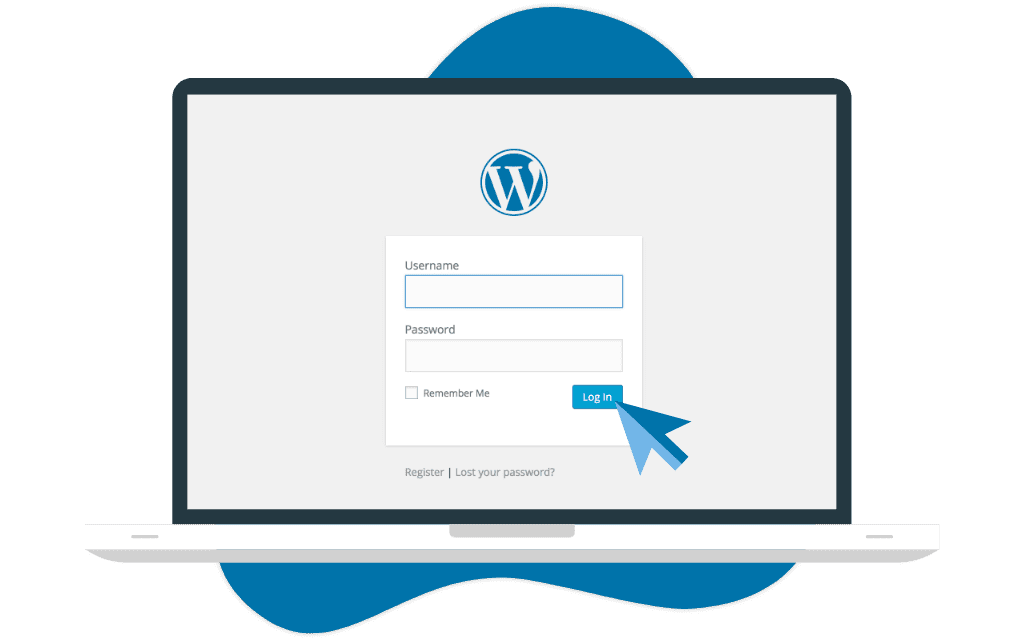
My user’s questions and queries always given me an idea to write about new post at Avyatech. Today I am writing about Force users to change password on first login in WordPress. Are you new wordpress user? Or you are going to migrate your website or blog from any platform to wordpress? Let’s get started and read about a helpful feature in wordpress.
Force users to change password in WordPress
There is no need to install any extra plugin and do activate and deactivate any existing plugins. I am sharing few steps that help you to change your password on your first login in WordPress easily.
add_action( 'user_register', 'force_login_meta_update', 10, 1 );
function force_login_meta_update( $user_id ) {
update_user_meta($user_id, 'force_login', 1);
}
Step 2. Create a template ‘template-pwdreset.php’.
/* Template Name: Password Reset Form */ global $wpdb, $current_user; get_currentuserinfo(); $user_ID  = $current_user->ID;
if ($user_ID) { //show only to logged in users

$redirect_url = $_GET['redirect_to'];
$check_val   = 'wp-admin';
$pos = strpos($redirect_url, $check_val);
if ($pos === false) {
 $redirect_url = $_GET['redirect_to'];
} else {
$site_url = get_site_url();
 $redirect_url = $site_url;
} ?><form class="form-horizontal user_form" id="wp_reset_password" method="post" action=""><div class="form-group">
<label class="control-label col-sm-3 col-xs-12">New Password:</label>

<div class="col-sm-9 col-xs-12">
  <input class="form-control" value="" name="resetnewpass" id="resetnewpass" type="password">
</div>

 </div>

<div class="form-group">
<label class="control-label col-sm-3 col-xs-12">Confirm Password:</label>

<div class="col-sm-9 col-xs-12">
  <input class="form-control" value="" name="restnewcpass" id="restnewcpass" type="password">
</div>

 </div>

<div class="form-group"><div class="col-sm-offset-3 col-sm-9 col-xs-12"><div class="formbtn">
 ;
  <input type="submit" id="resetsubmitbtn" class="newreset_password" name="submit" value="Update Password">
  </div>
</div></div></form>
Step 3. Create a Reset Password page.
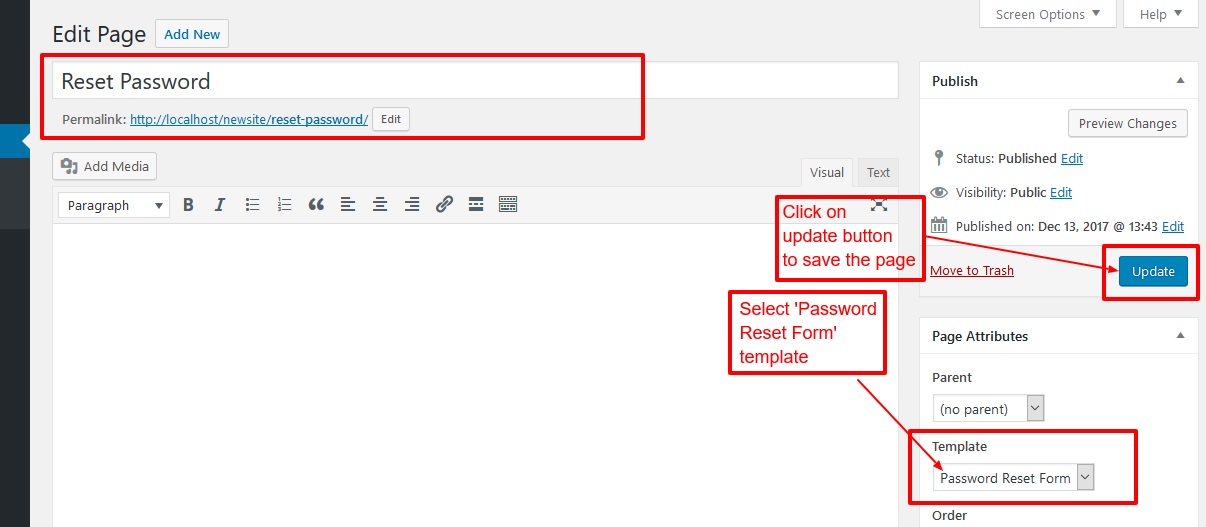
Add a new page named ‘Reset Password’.
Select the ‘Password Reset Template’ for the page.
Step 4. When the subscriber login in the first time, it will be redirected to the reset password page.

Add the below code in functions.php to redirect the subscriber to the reset the password page when login in the first time.
function redirect_passwort_login_redirect($redirect_to, $url_redirect_to = '', $user = null) {
if(isset($user-&amp;amp;amp;amp;amp;amp;amp;amp;amp;gt;ID) ) {
$changed_password = get_metadata("user", $user-&amp;amp;amp;amp;amp;amp;amp;amp;amp;gt;ID, "force_login",true);
if( $changed_password == 1 ) {
return get_bloginfo('url') . "/reset-password/?redirect_to=".$redirect_to;
} else {
return get_bloginfo('url');
}
}
return $redirect_to;
}
add_filter('login_redirect', 'redirect_passwort_login_redirect',10,3);
Step 5. Add the below code in functions.php to reset the password.
// reset password update
add_action('wp_ajax_nopriv_resetpwd', 'resetpwd');
// add action for logged in user
add_action('wp_ajax_resetpwd','resetpwd');
add_action('admin_post_nopriv_resetpwd', 'resetpwd');
function resetpwd(){
global $wpdb, $user_ID;
$error = array();
$id = $_POST['userid'];
$new_password = $_POST['restnewcpass'];
if (!isset( $_POST['resetpassword'] ) || ! wp_verify_nonce( $_POST['resetpassword'], $_POST['action'] ) ) {
$error[] = 'Please refresh your page and then update';
} else {
$userdata['ID'] = $id; //admin user ID
$userdata['user_pass'] = $new_password;
wp_update_user( $userdata );
update_metadata("user",$id,"force_login",0);
echo json_encode(array('type' =&amp;amp;amp;amp;amp;amp;amp;gt; 'success', 'message' =&amp;amp;amp;amp;amp;amp;amp;gt; "
Your password is updated successfully
"));
die;
}
if(sizeof($error)&amp;amp;amp;amp;amp;amp;amp;gt;0){
echo json_encode(array('type' =&amp;amp;amp;amp;amp;amp;amp;gt; 'error', 'message' =&amp;amp;amp;amp;amp;amp;amp;gt; implode("
", $error)));
die;
}
}